How to export My Cases from the eCourts app, and what to do with the file
Four taps save your eCourts My Cases list as myCases.txt. Where Export is, what the file holds, and how to load it into a diary that checks every case.
· 5 min read
Most advocates keep their case list in the My Cases section of the eCourts Services app. That list lives on one phone. The app has an Export button that saves the whole list as one file, and this guide shows where the button is, what the file holds, and how to load it into a diary that checks each case for you.
When you need the export
- Before an app update. On 17 August 2026 the District Court of Sirmaur asked advocates to back up My Cases with Export before installing the update released the next day.
- When you change phones. My Cases is stored on the phone, and the export is how the list moves to a new one.
- When you want the list somewhere else. The file can be loaded into a case diary, so you do not type each case again.
Export My Cases in four taps
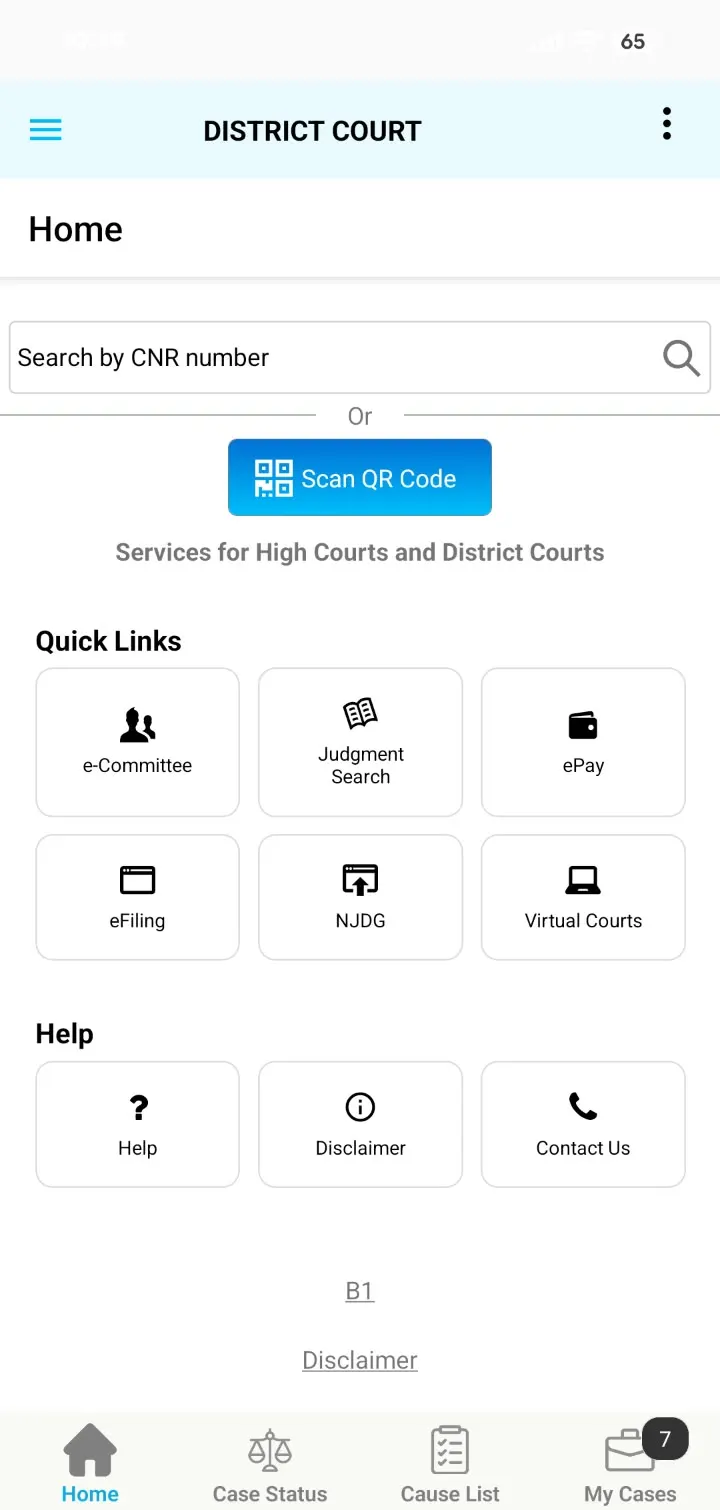
1Open the menu
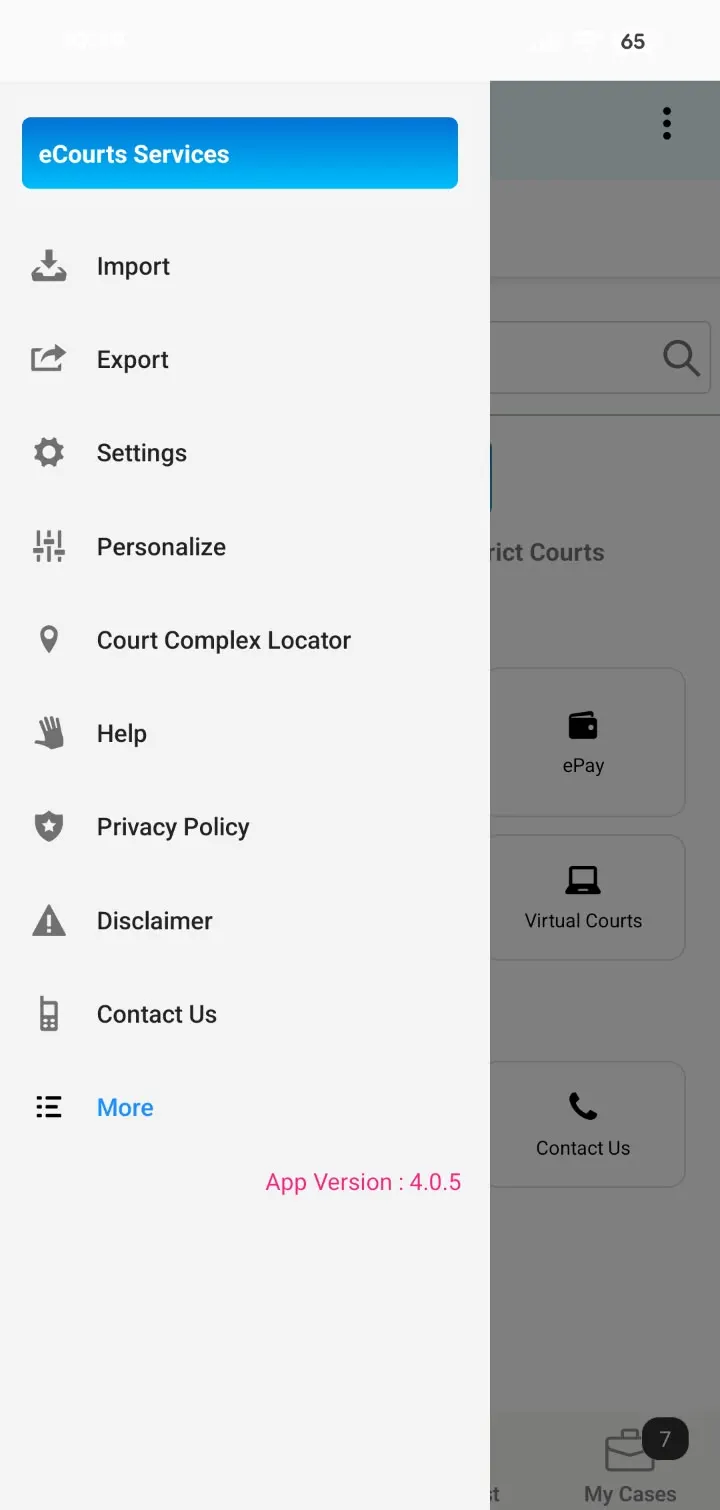
2Tap Export
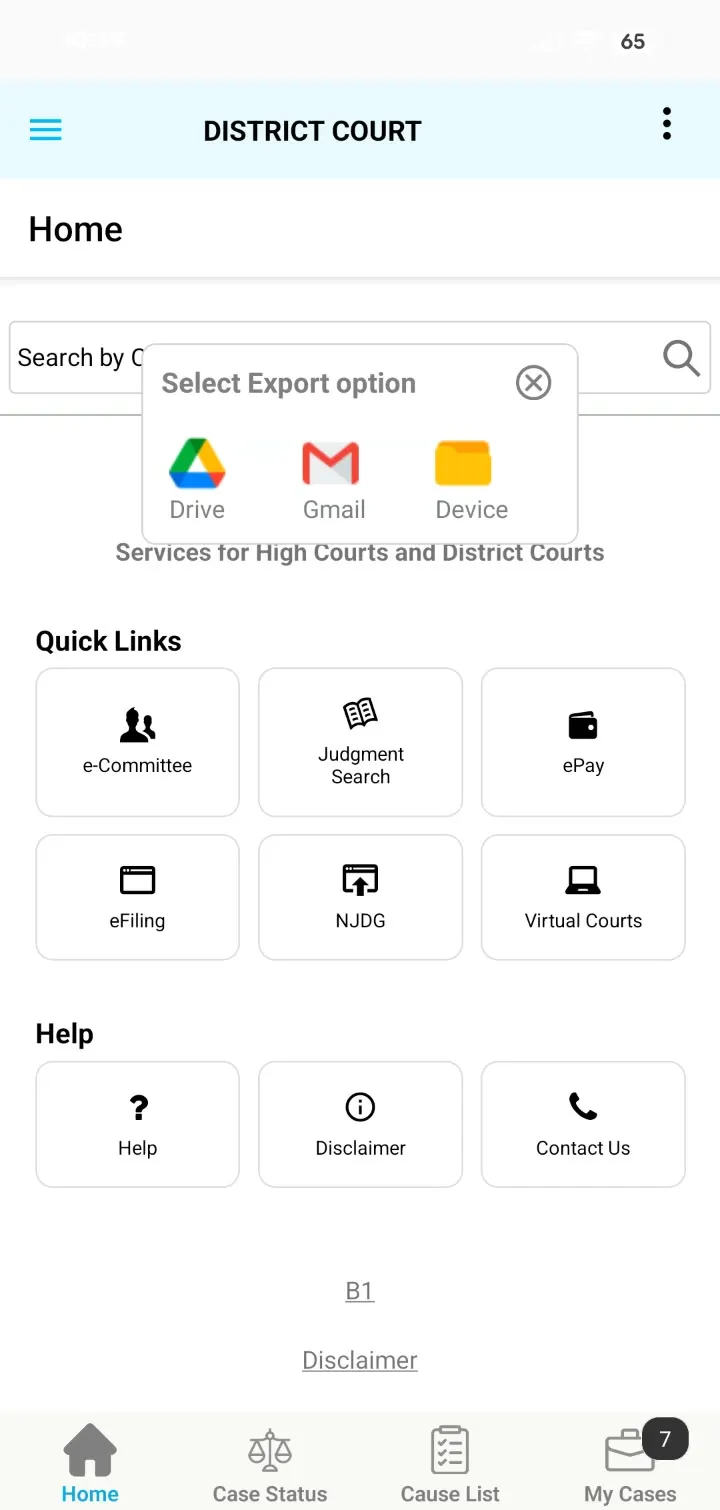
3Choose Device
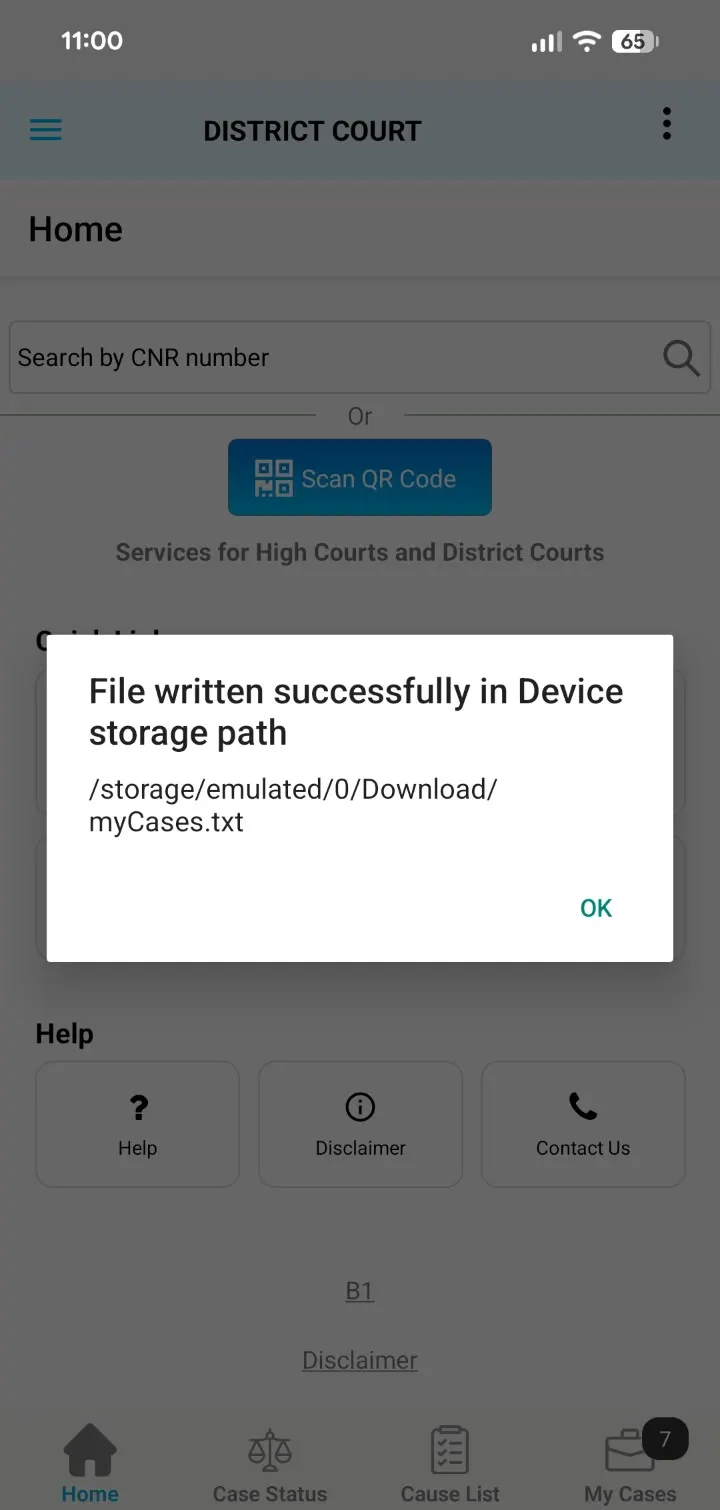
4Tap OK
- Open the menu. On the app's home screen, tap the three lines at the top left.
- Tap Export. It is the second item in the menu, under Import.
- Choose Device. This saves the file on your phone. Choose Drive or Gmail if you will use the file on a computer.
- Tap OK. The app saves
myCases.txtin your phone's Download folder.
The screens above are from version 4.0.5 of the app on Android.
What the file holds
myCases.txt has one entry for each saved case: the CNR, the case type and number, the party names, the court, and the next date the app last showed.
The file is a copy of what the app last synced. It is not the court record. A case you have not opened in months carries whatever date the app had then. That date has often passed.
Treat the file as a list of which cases you have. The dates in it need to be read again from the court.
Import the file into Nyayakosh
Open My Diary, tap Import from eCourts, and choose myCases.txt. The file is read in your browser first, so you see what it holds before anything is added.
Before you confirm
Found 214 cases in this export — 131 cases still active and 83 decided.
83 of these are already decided. They'll be kept for the record and checked rarely — never alerted on.
Off to start with. You can turn alerts on per case once you've seen the list.
After
131 cases added to your diary.
2 rows were listed twice in the file. We'll read each one's court record over the next day — hearing dates and stages fill in as that happens, a few at a time so the courts' site isn't hammered.
You make two choices:
- Include decided cases. They are left out to start with. If you include them, they are kept for the record, checked rarely, and never alerted on.
- Email me about these cases. This is off to start with, so an import of a few hundred cases does not send a few hundred emails. You can turn alerts on for one case at a time later.
A row with no usable CNR is skipped, and the screen tells you which rows. A long list is sent 500 cases at a time. Cases you already track are left as they are, so importing the same file twice adds nothing twice.
What happens after the import
Nyayakosh takes the CNR of each case and reads its record from eCourts. It does this a few cases at a time. For a few hundred cases, hearing dates and stages fill in over the next few hours to a day.
- Mon19OctTomorrow
- Tue20OctIn 2 daysPlaintiff S v. Defendant T
CS (COMM) 88/2025 · Saket Courts
Room no. 17 · Saket Courts
Sh. XXXXXXXX
Item No: 3 - Fri23OctIn 5 daysAppellant C v. State
CRL.A. 1180/2025 · High Court of Delhi
- No date
After that, each case is checked once a day. The check runs every 12 hours once a hearing is within 7 days, and every 6 hours within 2 days.
For a case with alerts on, you are told about four kinds of change: a new or moved hearing date, a stage change, disposal, and a new order. Alerts arrive by email and inside the app.
What the diary shows that the list does not
- The item number. When a case is on a cause list we can read, its row shows the item number.
- The court room and the video link. For Delhi courts, the row shows the room number and the judge, with a button to join the hearing by video where the court has one.
- Your day. The Today view puts the day's hearings in one place, grouped by court building and by bench.
- Where the court has reached. The High Court display board shows which item each court room is on. It is open without an account: see the display board.
Questions
- Where does the eCourts app save the exported My Cases file?
- If you choose Device, the app saves a file named myCases.txt in your phone's Download folder. If you choose Drive or Gmail, the same file goes to your Google Drive or into an email draft.
- Does importing the file change anything in the eCourts app?
- No. Nyayakosh reads a copy of the exported file. Your My Cases list in the eCourts app stays exactly as it was.
- Will I get an email for every imported case?
- No. Email alerts are off for imported cases to start with. You turn them on for the cases you want, or for the whole import, before you confirm.
- What happens to cases that are already decided?
- They are left out unless you switch on Include decided cases. If you include them, they are kept for the record, checked rarely, and never alerted on.
- Can I import the file again later?
- Yes. Cases you already track are left as they are, and only the new ones are added.
Free during Beta
Bring your eCourts Services app list across.
Import myCases.txt once. Each case is then checked once a day, and every 6 hours as a hearing gets close.
More from the blog
- How to find your item number in the cause list without opening the PDF
- Delhi High Court display board: how to read it, and your matter against it
- Delhi court room numbers and VC links, next to your matter
- Bombay High Court display board: serial numbers and kept-back cases
- Your court day on one screen: item number, court room, VC link and display board